Sunday, 9 June 2013

How to enable JavaScript in your browser

quote Nowadays almost all web pages contain JavaScript, a scripting programming language that runs on visitor's web browser. It makes web pages functional for specific purposes and if disabled for some reason, the content or the functionality of the web page can be limited or unavailable. Here you can find instructions on how to enable (activate) JavaScript in five most commonly used browsers.

Internet Explorer Mozilla Firefox Google Chrome Apple Safari Opera
javascript enabled JavaScript is enabled in your web browser. If you disable JavaScript, this text will change.

Developer Instructions for web developers

You may want to consider linking to this site, to educate any script-disabled users on how to enable JavaScript in five most commonly used browsers. You are free to use the code below and modify it according to your needs.
<noscript>
 For full functionality of this site it is necessary to enable JavaScript.
 Here are the <a href="http://www.enable-javascript.com/" target="_blank">
 instructions how to enable JavaScript in your web browser</a>.
</noscript>
On enable-javascript.com we optimize the script-disabled user experience as much as we can:
  • The instructions for your browser are put at the top of the page
  • All the images are inlined, full-size, for easy perusing
  • This developer-centric message is out of the way
We want your visitors to have JavaScript enabled just as much as you do!

Firefox Mozilla Firefox

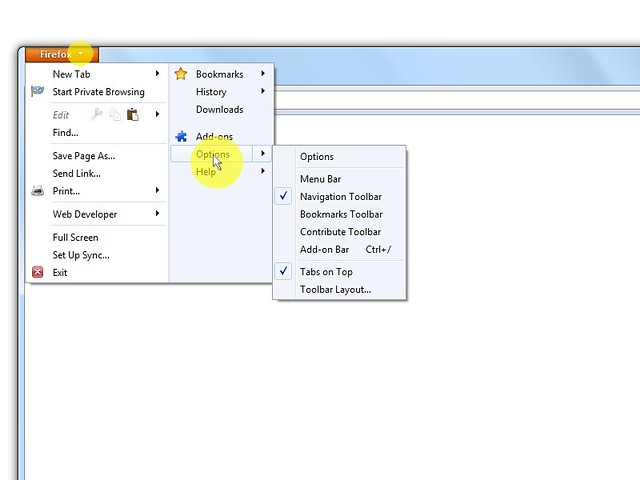
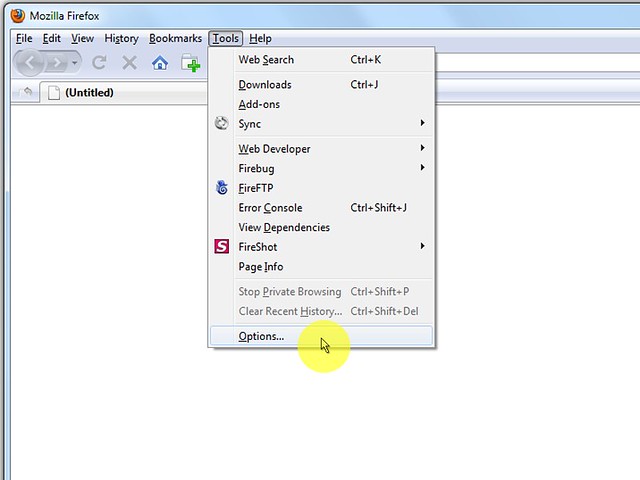
  1. On the web browser click "Firefox" menu and then select "Options".
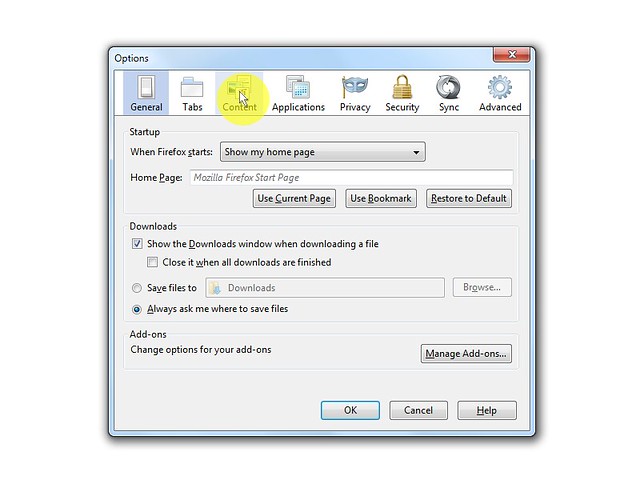
  2. In the "Options" window select the "Content" tab.
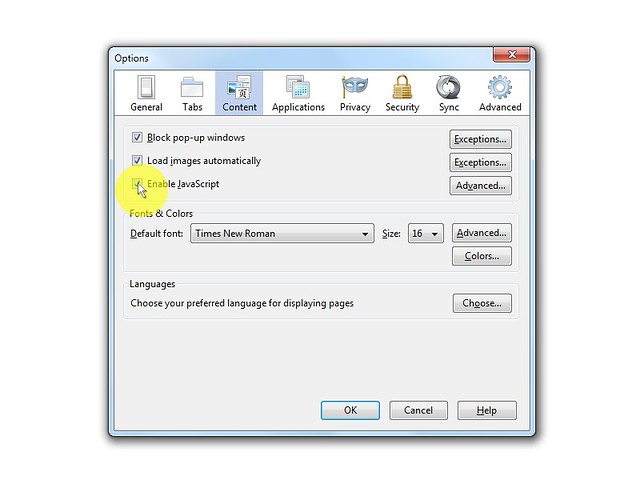
  3. Mark the "Enable JavaScript" checkbox.
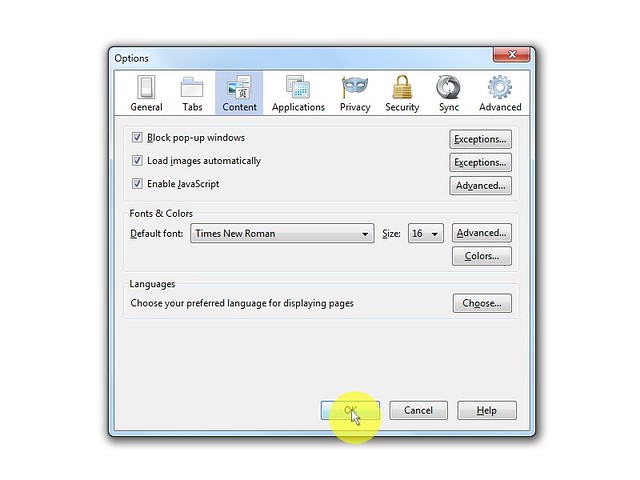
  4. In the opened "Options" window click on the "OK" button to close it.
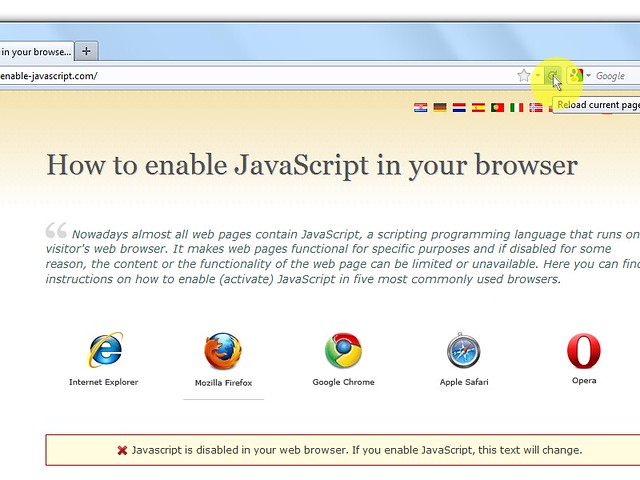
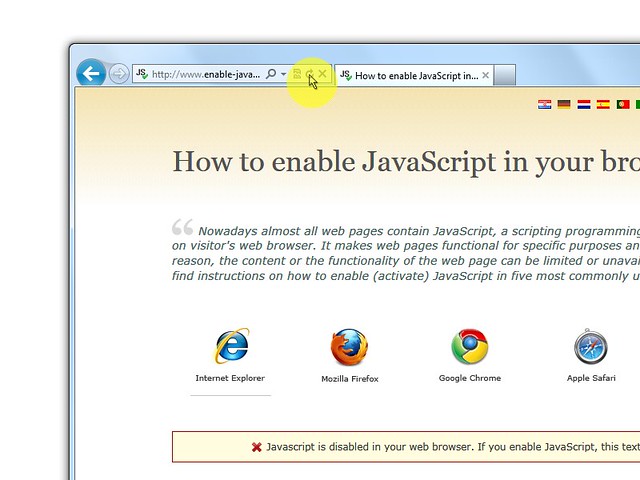
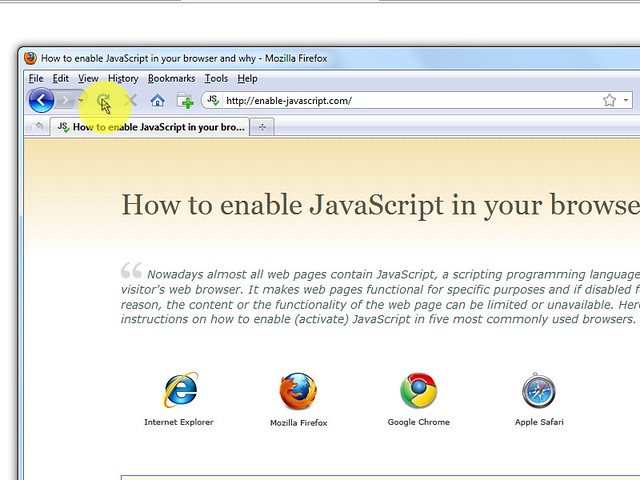
  5. Click on the "Reload current page" button of the web browser to refresh the page.
  • 1. On the web browser click "Firefox" menu and then select "Options".
  • 2. In the "Options" window select the "Content" tab.
  • 3. Mark the "Enable JavaScript" checkbox.
  • 4. In the opened "Options" window click on the "OK" button to close it.
  • 5. Click on the "Reload current page" button of the web browser to refresh the page.

Internet Explorer Internet Explorer

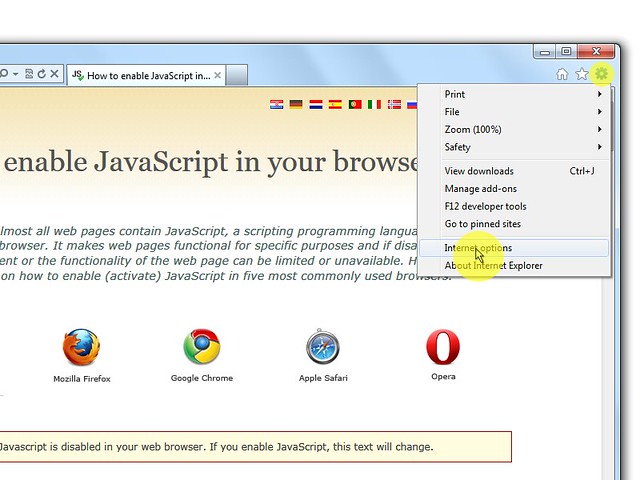
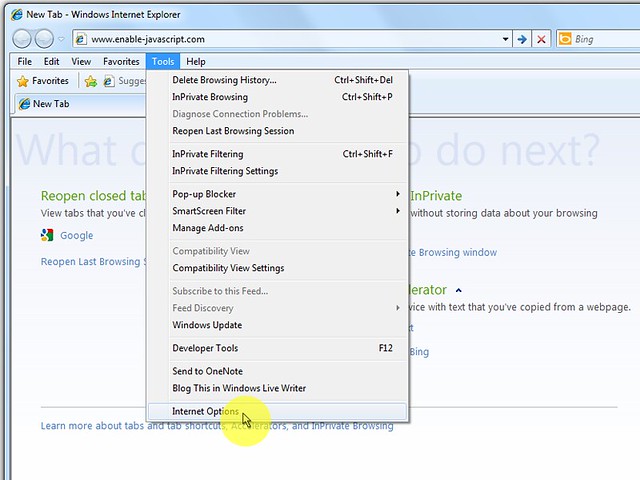
  1. On web browser menu click "Tools" menu and select "Internet Options".
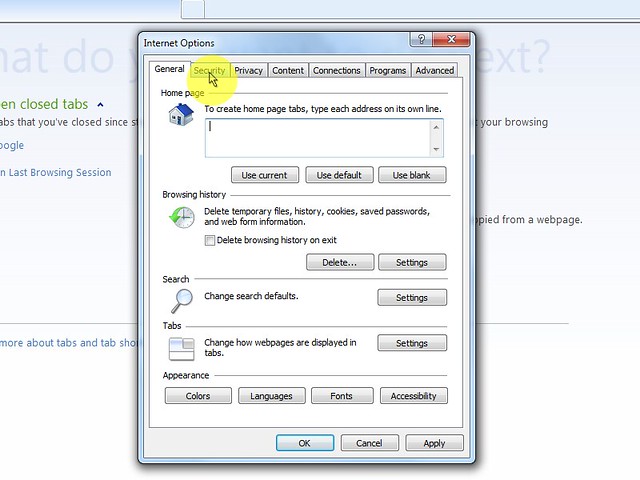
  2. In the "Internet Options" window select the "Security" tab.
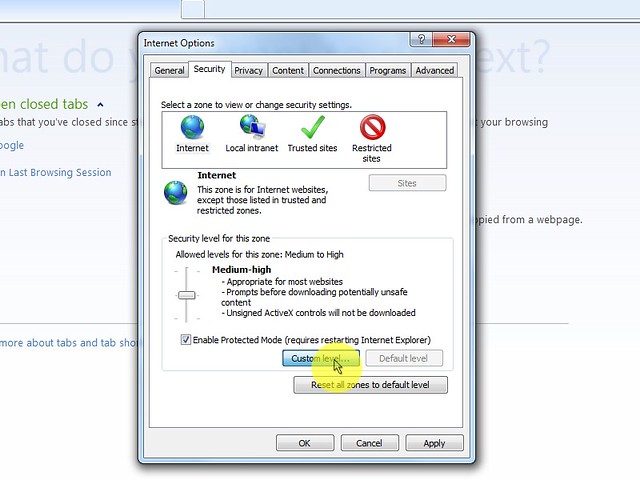
  3. On the "Security" tab click on the "Custom level..." button.
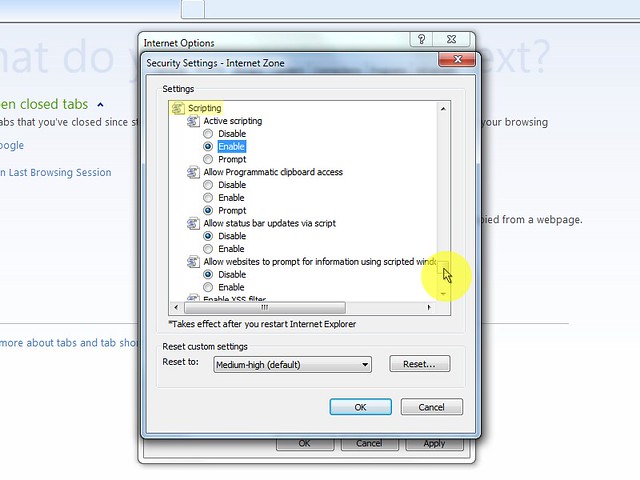
  4. When the "Security Settings - Internet Zone" dialog window opens, look for the "Scripting" section.
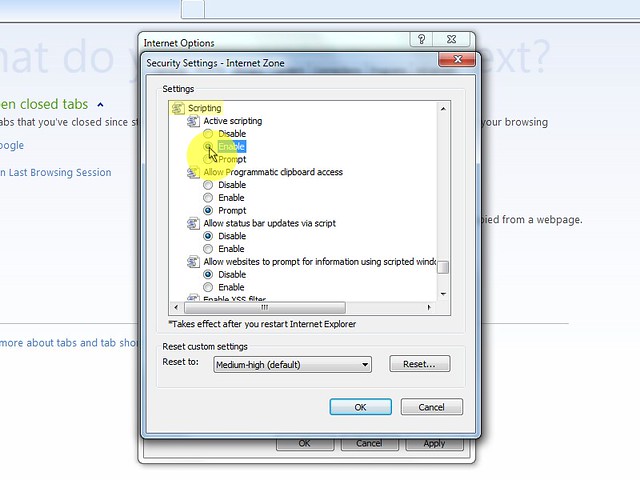
  5. In the "Active Scripting" item select "Enable".
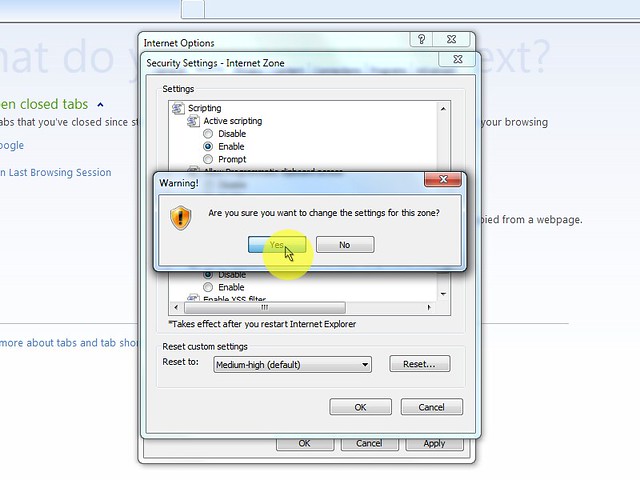
  6. When the "Warning!" window pops out asking "Are you sure you want to change the settings for this zone?" select "Yes".
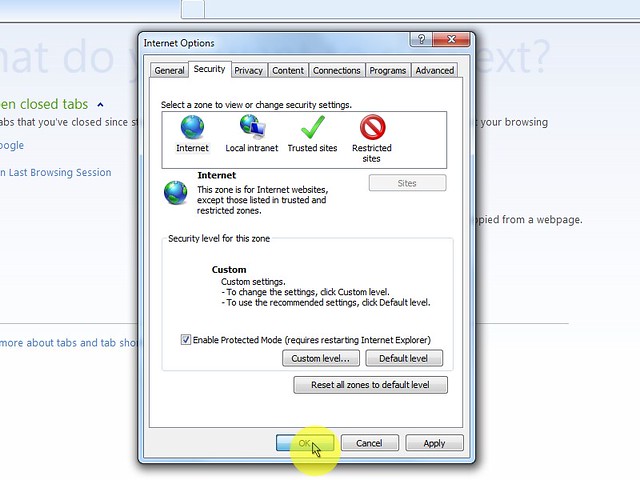
  7. In the "Internet Options" window click on the "OK" button to close it.
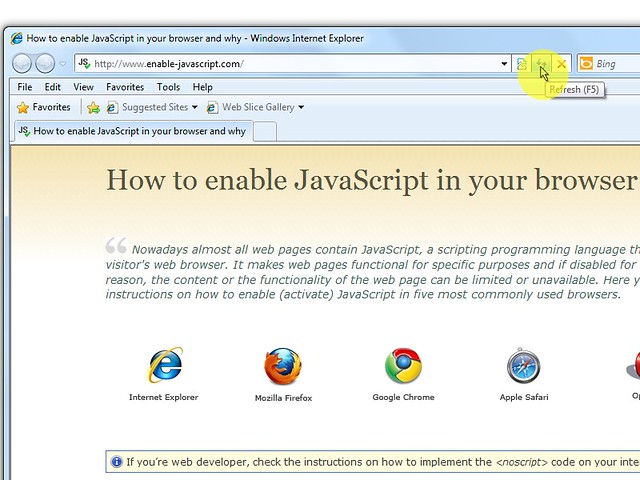
  8. Click on the "Refresh" button of the web browser to refresh the page.
Internet Explorer < 9 Internet Explorer < 9
  1. On web browser menu click "Tools" and select "Internet Options".
  2. In the "Internet Options" window select the "Security" tab.
  3. On the "Security" tab click on the "Custom level..." button.
  4. When the "Security Settings - Internet Zone" dialog window opens, look for the "Scripting" section.
  5. In the "Active Scripting" item select "Enable".
  6. When the "Warning!" window pops out asking "Are you sure you want to change the settings for this zone?" select "Yes".
  7. In the "Internet Options" window click on the"OK" button to close it.
  8. Click on the "Refresh" button of the web browser to refresh the page.
Firefox < 4 Mozilla Firefox < 4
  1. On the web browser menu click "Tools" and select "Options".
  2. In the "Options" window select the "Content" tab.
  3. Mark the "Enable JavaScript" checkbox.
  4. In the opened "Options" window click on the "OK" button to close it.
  5. Click on the "Reload current page" button of the web browser to refresh the page.

Chrome Google Chrome

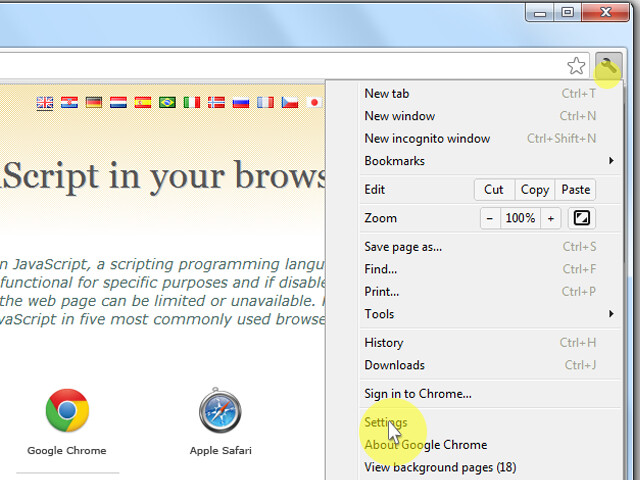
  1. On the web browser menu click on the "Customize and control Google Chrome" and select "Settings".
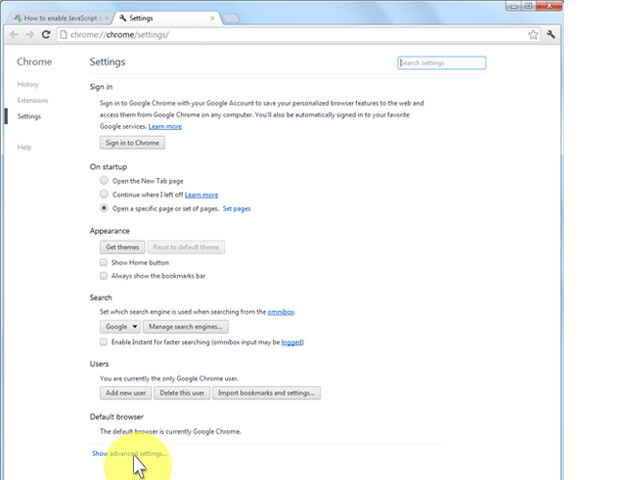
  2. In the "Settings" section click on the "Show advanced settings..."
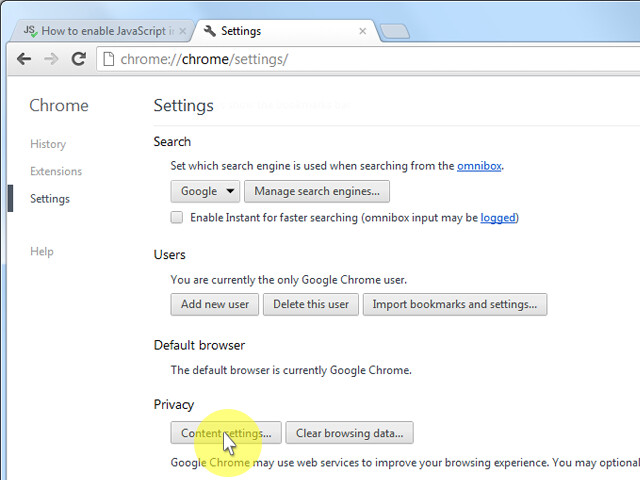
  3. Under the the "Privacy" click on the "Content settings...".
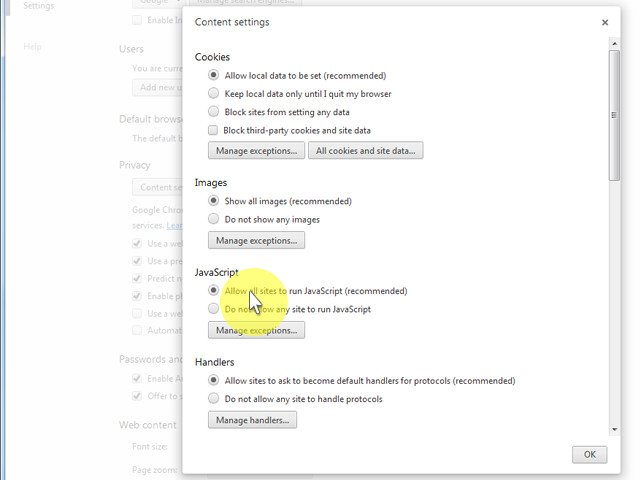
  4. When the dialog window opens, look for the "JavaScript" section and select "Allow all sites to run JavaScript (recommended)".
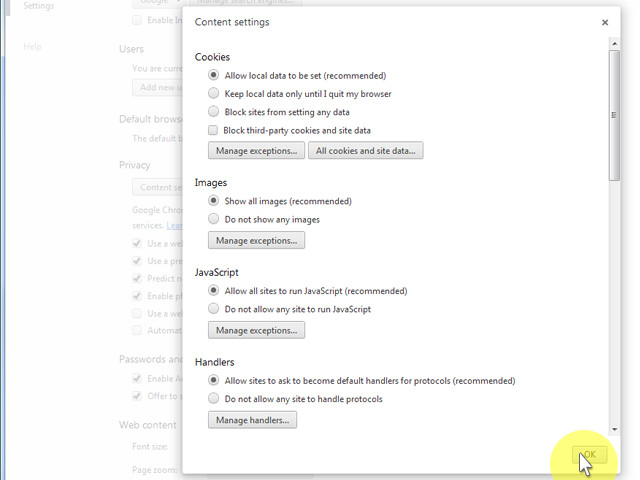
  5. Click on the "OK" button to close it.
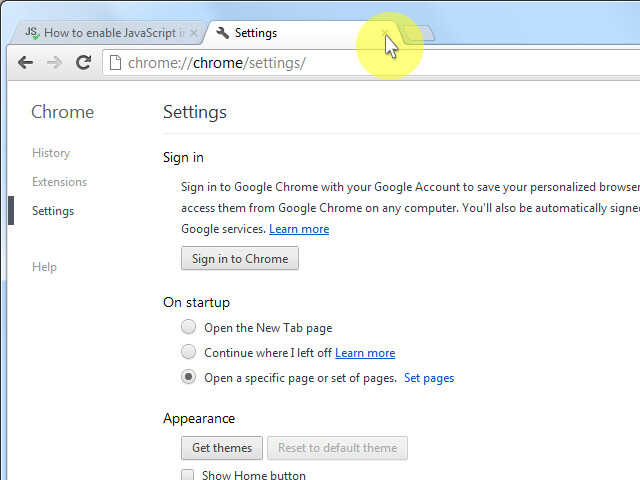
  6. Close the "Settings" tab.
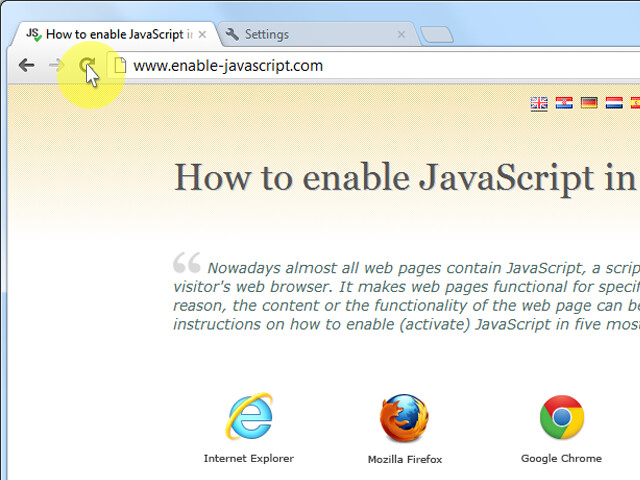
  7. Click on the "Reload this page" button of the web browser to refresh the page.

Safari Apple Safari

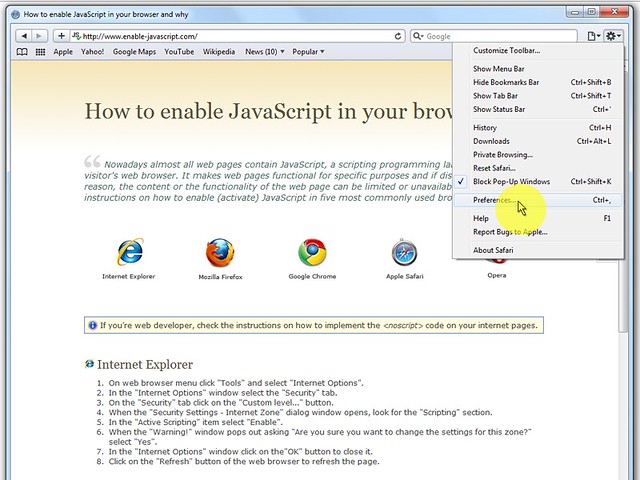
  1. On the web browser menu click on the "Edit" and select "Preferences".
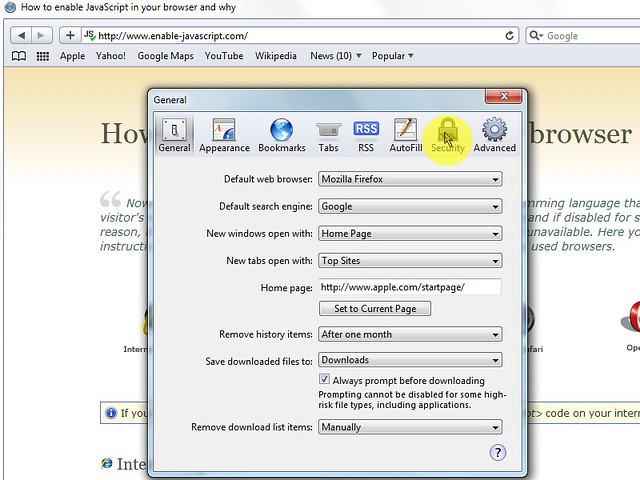
  2. In the "Preferences" window select the "Security" tab.
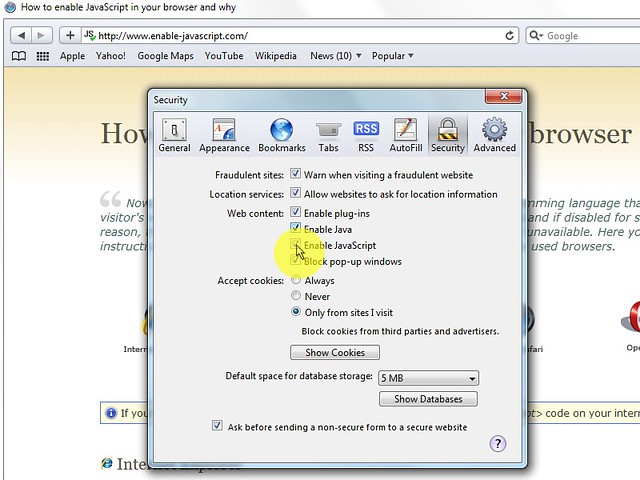
  3. In the "Security" tab section "Web content" mark the "Enable JavaScript" checkbox.
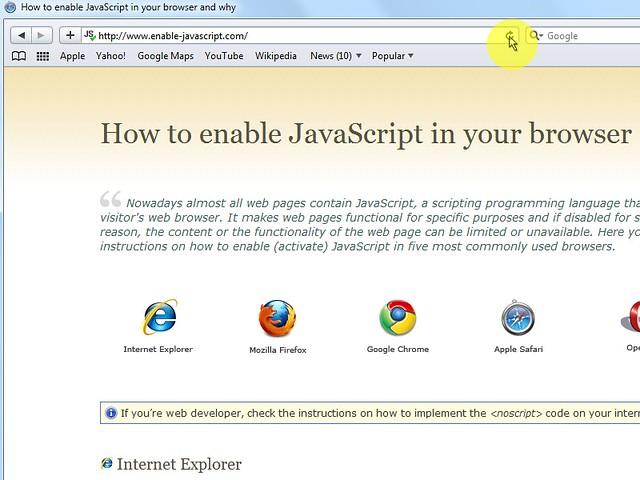
  4. Click on the "Reload the current page" button of the web browser to refresh the page.

Opera Opera

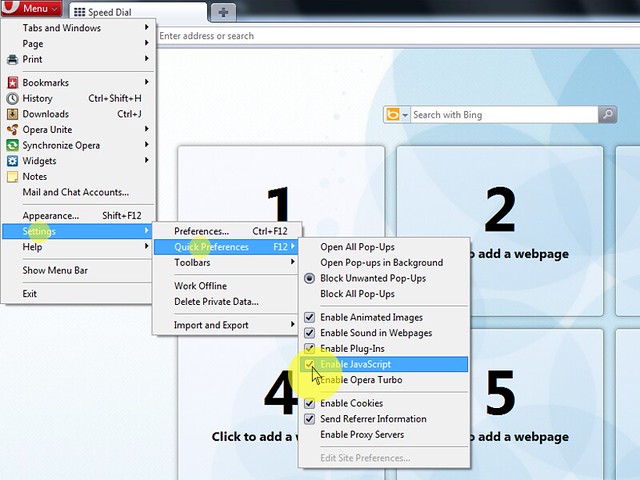
  • 1. a) Click on "Menu", hover mouse on the "Settings" then hover mouse on the "Quick preferences" and mark the "Enable JavaScript" checkbox.
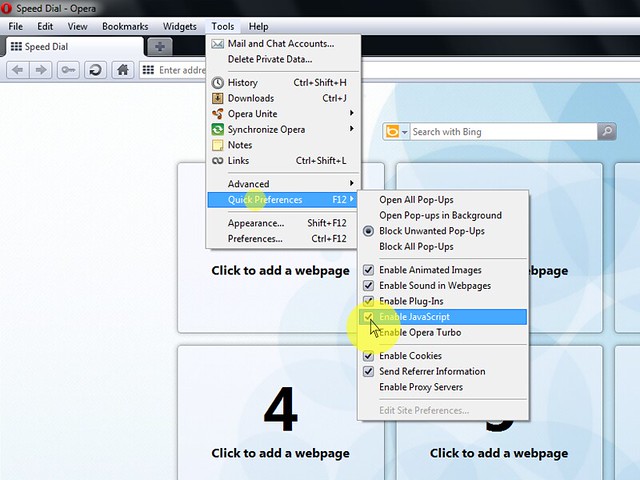
  • 1. b) If "Menu bar" is shown click on the "Tools", hover mouse on the "Quick preferences" and mark the "Enable JavaScript" checkbox.
  • 1. a) opera10 a
  • 1. b) opera10 b
Opera < 10 Opera < v. 10
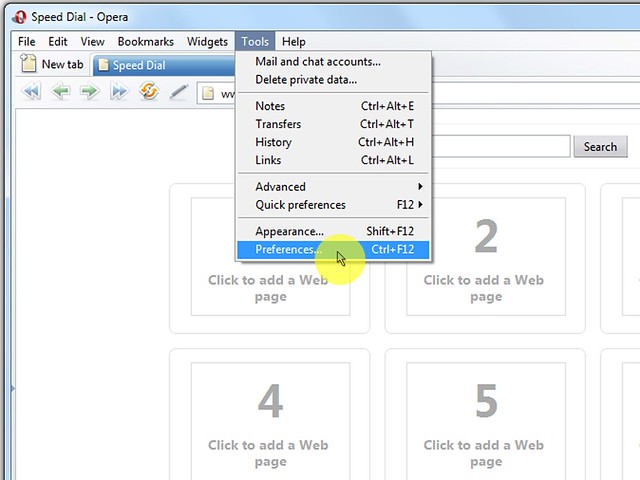
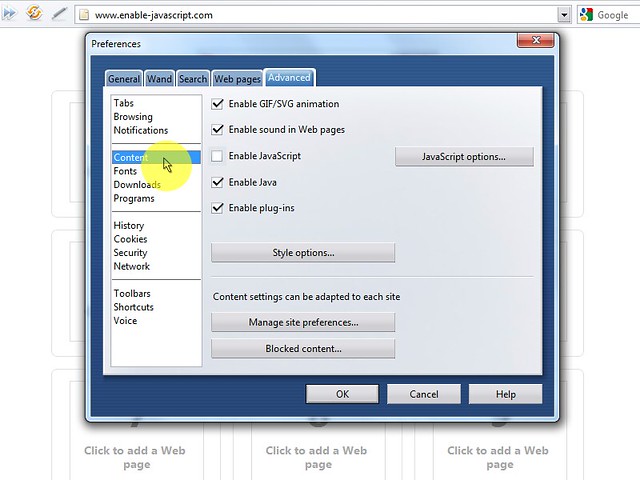
  1. On the web browser menu click "Tools" and select "Preferences".
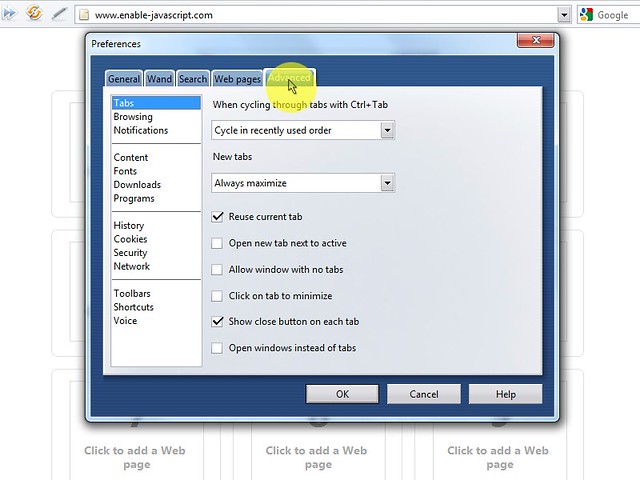
  2. In the "Preferences" window select the "Advanced" tab.
  3. On the "Advanced" tab click on "Content" menu item.
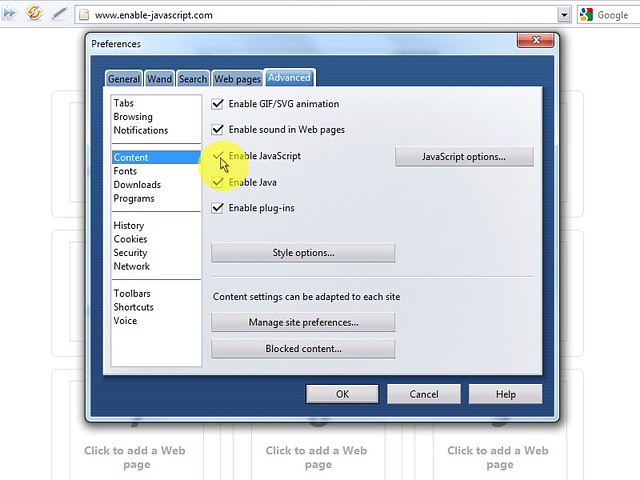
  4. Mark the "Enable JavaScript" checkbox.
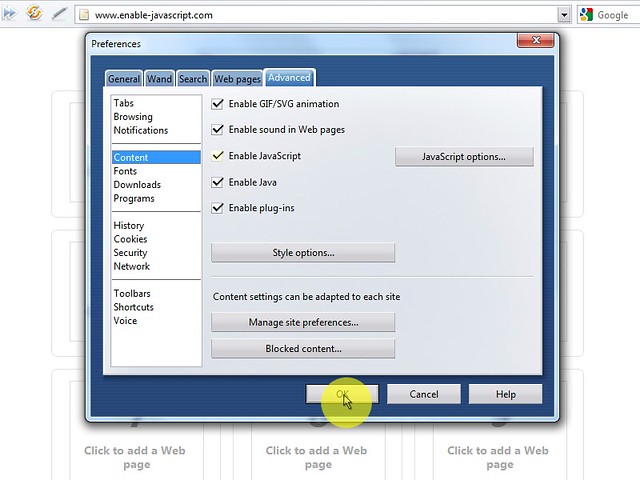
  5. In the opened "Preferences" window click on the "OK" button to close it.
  6. Click on the "Reload" button of the web browser to refresh the page.

Flying text with jquery

Flying Letters

Example goes here

Thanks for visiting "1289solutions.blogspot.com"

Code goes here :
<!DOCTYPE html>
<html xmlns="http://www.w3.org/1999/xhtml">
<head>
<meta http-equiv="Content-Type" content="text/html; charset=utf-8" />
<title>Flying Letters</title>
</head>

<body>


<h2 id="fly">Thanks for visiting "1289solutions.blogspot.com"</h2>

<script type="text/javascript">

//Flying Letters script- by Matthias (info@freejavascripts.f2s.com)
// Modified by Twey for efficiency and compatibility
//For this script and more, visit Dynamic Drive: http://www.dynamicdrive.com

//Configure message to display. Use "$" for linebreak
//By default, set to just grab the text from element with ID="fly"
message = document.getElementById("fly").innerHTML; // $ = taking a new line
distance = 50; // pixel(s)
speed = 200; // milliseconds

var txt="",
    num=0,
    num4=0,
    flyofle="",
    flyofwi="",
    flyofto="",
    fly=document.getElementById("fly");


function stfly() {
    for(i=0;i != message.length;i++) {
        if(message.charAt(i) != "$")
            txt += "<span style='position:relative;visibility:hidden;' id='n"+i+"'>"+message.charAt(i)+"<\/span>";
        else
            txt += "<br>";
    }
    fly.innerHTML = txt;
    txt = "";
    flyofle = fly.offsetLeft;
    flyofwi = fly.offsetWidth;
    flyofto = fly.offsetTop;
    fly2b();
}

function fly2b() {
    if(num4 != message.length) {
        if(message.charAt(num4) != "$") {
            var then = document.getElementById("n" + num4);
            then.style.left = flyofle - then.offsetLeft + flyofwi / 2;
            then.style.top = flyofto - then.offsetTop + distance;
            fly3(then.id, parseInt(then.style.left), parseInt(then.style.left) / 5, parseInt(then.style.top), parseInt(then.style.top) / 5);
        }
        num4++;
        setTimeout("fly2b()", speed);
    }
}

function fly3(target,lef2,num2,top2,num3) {
    if((Math.floor(top2) != 0 && Math.floor(top2) != -1) || (Math.floor(lef2) != 0 && Math.floor(lef2) != -1)) {
        if(lef2 >= 0)
            lef2 -= num2;
        else
            lef2 += num2 * -1;
        if(Math.floor(lef2) != -1) {
            document.getElementById(target).style.visibility = "visible";
            document.getElementById(target).style.left = Math.floor(lef2);
        } else {
            document.getElementById(target).style.visibility = "visible";
            document.getElementById(target).style.left = Math.floor(lef2 + 1);
        }
        if(lef2 >= 0)
            top2 -= num3
        else
            top2 += num3 * -1;
        if(Math.floor(top2) != -1)
            document.getElementById(target).style.top = Math.floor(top2);
        else
            document.getElementById(target).style.top = Math.floor(top2 + 1);
        setTimeout("fly3('"+target+"',"+lef2+","+num2+","+top2+","+num3+")",50)
    }
}

stfly()

</script>
</body>
</html>

Saturday, 25 May 2013

Jquery multiple checkbox check to enable button


Select single checkbox and a submit button that is initially disabled. When checking a box the button is enabled and when unchecking , the button is disabled again.
if two checkboxes checked then button is disabled, if one check box is checked then button is enabled. 

<!DOCTYPE html PUBLIC "-//W3C//DTD XHTML 1.0 Transitional//EN" "http://www.w3.org/TR/xhtml1/DTD/xhtml1-transitional.dtd">
<html xmlns="http://www.w3.org/1999/xhtml">
<head>
<meta http-equiv="Content-Type" content="text/html; charset=utf-8" />
<title>Jquery multiple checkbox check to enable button</title>
<script type="text/javascript" src="http://ajax.googleapis.com/ajax/libs/jquery/1.3.2/jquery.min.js"></script>
<script>
$(document).ready( function(){
$('.chkbox').click( function() {
    if ($('.chkbox:checked').length==1) {
$('#add1').removeAttr("disabled");
$('#add2').removeAttr("disabled");
}
else{
$('#add1').attr("disabled","true");
$('#add2').attr("disabled","true");
}
});
});
</script>
</head>
<body>
<h3>Select atleast one checkbox to enable button</h3>
<br />
<input type="checkbox" class="chkbox" /><br />
<input type="checkbox" class="chkbox"/><br />
<input type="checkbox" class="chkbox"/>
<br />
<input id='add1' type='button' value='Submit' disabled='disabled'>
<input id='add2' type='button' value='Submit' disabled='disabled'>
<h3>Try to select two checkboxs to enable button</h3>
</body>
</html>


Jquery multiple checkbox check to enable button

Select atleast one checkbox to enable button


Try to select two checkboxs to enable button

Allow Alphanumeric (Alphabets & Numbers) Characters in Textbox using JQuery

Here I will show how to use JQuery to allow only alphanumeric characters in textbox or make textbox to allow only alphabets & numbers using JQuery.

<html xmlns="http://www.w3.org/1999/xhtml">
<head>
<title>jQuery Allow only alphanumeric characters in textbox</title>
<script type="text/javascript" src="http://code.jquery.com/jquery-1.8.2.js"></script>
<script type="text/javascript">
$(function () {
$('#txtNumeric').keydown(function (e) {
if (e.shiftKey || e.ctrlKey || e.altKey) {
e.preventDefault();
else {
var key = e.keyCode;
if (!((key == 8) || (key == 32) || (key == 46) || (key >= 35 && key <= 40) || (key >= 65 && key <= 90) || (key >= 48 && key <= 57) || (key >= 96 && key <= 105))) {
e.preventDefault();
}
}
});
});
</script>
</head>
<body>
<div>
<b>Enter Text:</b><input type="text" id="txtNumeric" />
</div>
</body>
</html>

jQuery Allow only alphanumeric characters in textbox
Enter Text:

Saturday, 18 May 2013

Make link prompt visitor to download .PDF, .DOC, or other file


In some situations when you're creating a web page with links to an Adobe Acrobat .PDF, Microsoft Word. DOC, Microsoft Excel .XLS, or other external program file, you may want the Internet browser to prompt the user to download the file instead of opening it in the browser window or in the external program. There are a few different methods you can do this.
  1.  We recommend on the web page that the user right-click the link and choose the option to Save or Save as the file.
  2.  Save the file within a compressed format such as a .ZIP file.
  3. Create the below PHP file that can be used to open .PDF files and if modified, .DOC or other files.
3a. Start by creating a new file on your server or on your computer called download.php3b. Once this file has been created copy and paste the below code into the file.
<?php if (isset($_GET['file'])) {
$file = $_GET['file'];
if (file_exists($file) && is_readable($file) && preg_match('/\.pdf$/',$file)) {
header('Content-Type: application/pdf');
header("Content-Disposition: attachment; filename=\"$file\"");
readfile($file);
}
} else {
header("HTTP/1.0 404 Not Found");
echo "<h1>Error 404: File Not Found: <br /><em>$file</em></h1>";
}
?>
3c. Once the above has been done, save the file and if needed upload to the server hosting your web page.
3d. Finally, once uploaded, all future .PDF links that you want to be downloaded instead of opened in the browser will need to point to download.php?file=example.pdf, where example.pdf is the name of the PDF you wish for the user to download. Below is an example of what a full link could look like.
<a href="http://www.computerhope.com/download.php?file=example.pdf">Click here to download PDF</a>